
What Is Cloud Gaming Xbox? Complete Guide for Beginners in 2026
Discover what Xbox Cloud Gaming is in 2026 and how it lets you play high-quality console games instantly on any device without downloads or powerful hardware.
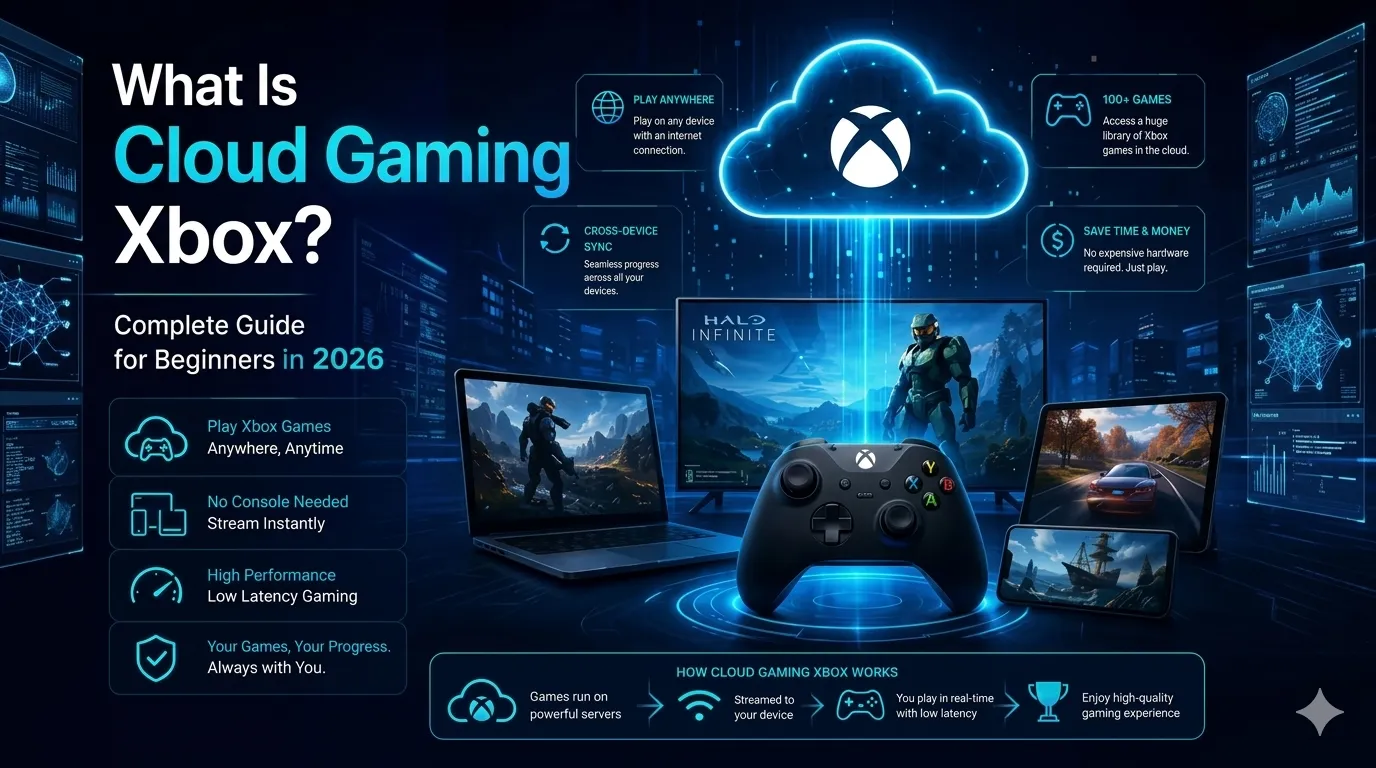
You've probably heard people say they're playing Xbox games on their phone or laptop without owning an Xbox console. That's not a trick. That's Xbox Cloud Gaming, and it's one of the most significant shifts in how people access video games today. If you've been wondering what cloud gaming on Xbox actually means and whether it's something you should try, you're in the right place.
This guide explains, from scratch, how the technology works, which devices support it, what internet speeds you actually need, and exactly how to get started today.
What Is Cloud Gaming Xbox? The Simple Explanation
Xbox Cloud Gaming is Microsoft's game streaming service. Instead of running a game on a local console or PC, Microsoft runs it on powerful servers inside its global data centers and streams the gameplay directly to your screen.
You see the video. You hear the audio. You press buttons on your controller. Those inputs travel to Microsoft's server, the server processes them instantly, and the next frame of gameplay streams back to your device all within milliseconds.
The result? You experience a fully playable game on almost any screen, without needing gaming hardware to run it.
Microsoft originally developed this technology under the codename xCloud and launched it publicly as part of Xbox Game Pass Ultimate in 2021. Since then, it has expanded to over 40 countries and grown its library to hundreds of playable titles. In 2026, it remains one of the most polished and widely available cloud gaming services on the market.
The core idea is simple: gaming power lives in the cloud. Your device is just the screen.
How Does Xbox Cloud Gaming Work Under the Hood?
Microsoft's Server Infrastructure
When you launch a cloud game through Xbox, Microsoft assigns you a dedicated Xbox Series X blade, a physical server unit built specifically around Xbox hardware located in a data center near your region. That blade runs the game exactly as a real Xbox Series X would, at up to 1080p resolution and 60 frames per second, with 4K available on select devices.
Your device captures your controller input, encrypts it, and sends it to that server over the internet. The server processes the input, renders the next frame, compresses the video using advanced streaming codecs, and sends it back to your screen. This full round trip takes 40 to 120 milliseconds, depending on your connection and location.
That's the core loop: input goes up, video comes down, repeat dozens of times every second.
Why Does Your Location Matter?
The speed of this loop, called latency or ping, depends significantly on how far you are from Microsoft's data center. Light and data travel fast, but distance still adds delay. Microsoft operates data centers across North America, Europe, Asia-Pacific, and Latin America to keep most users within a reasonable range of a server.
Players in major metropolitan areas often experience lower latency than players in rural regions, simply because they're closer to infrastructure. This geographic factor is one of the reasons cloud gaming feels smoother in some areas than others.
What Resolution and Frame Rate Can You Expect?
Most users stream Xbox Cloud Gaming at 1080p and 60fps, which delivers a solid visual experience for the vast majority of games. Microsoft has been expanding support for higher resolutions on certain devices and game titles, with 4K streaming available through specific plan tiers.
The video goes through compression before it reaches your screen, which can introduce minor visual artifacts, particularly during fast-moving scenes or in dark environments. This is a normal characteristic of video streaming technology, not a flaw specific to Xbox. Most casual gamers never find it distracting.
Now that you understand how the technology works, let's look at everything you need to actually use it.
What Do You Need to Start Xbox Cloud Gaming?
A Compatible Device
One of the strongest selling points of Xbox Cloud Gaming is how few barriers exist to getting started. You likely already own a compatible device. As of 2026, the service works on:
Android smartphones and tablets: via the Xbox Game Pass app (available on Google Play)
iPhones and iPads: via Safari or other supported browsers at xbox.com/play
Windows 10 and Windows 11 PCs and laptops: via the Xbox app or browser
Samsung Smart TVs: select 2022 and newer models with the Xbox app built in
Amazon Fire TV: via browser or the Xbox app
Meta Quest VR headsets: via browser in the virtual environment
Chromebooks and other browsers: via xbox.com/play on Chrome or Edge
This breadth of device support is genuinely impressive. You can start a gaming session on your phone during lunch and resume on your smart TV at home using the same subscription, the same library, and the same save data.
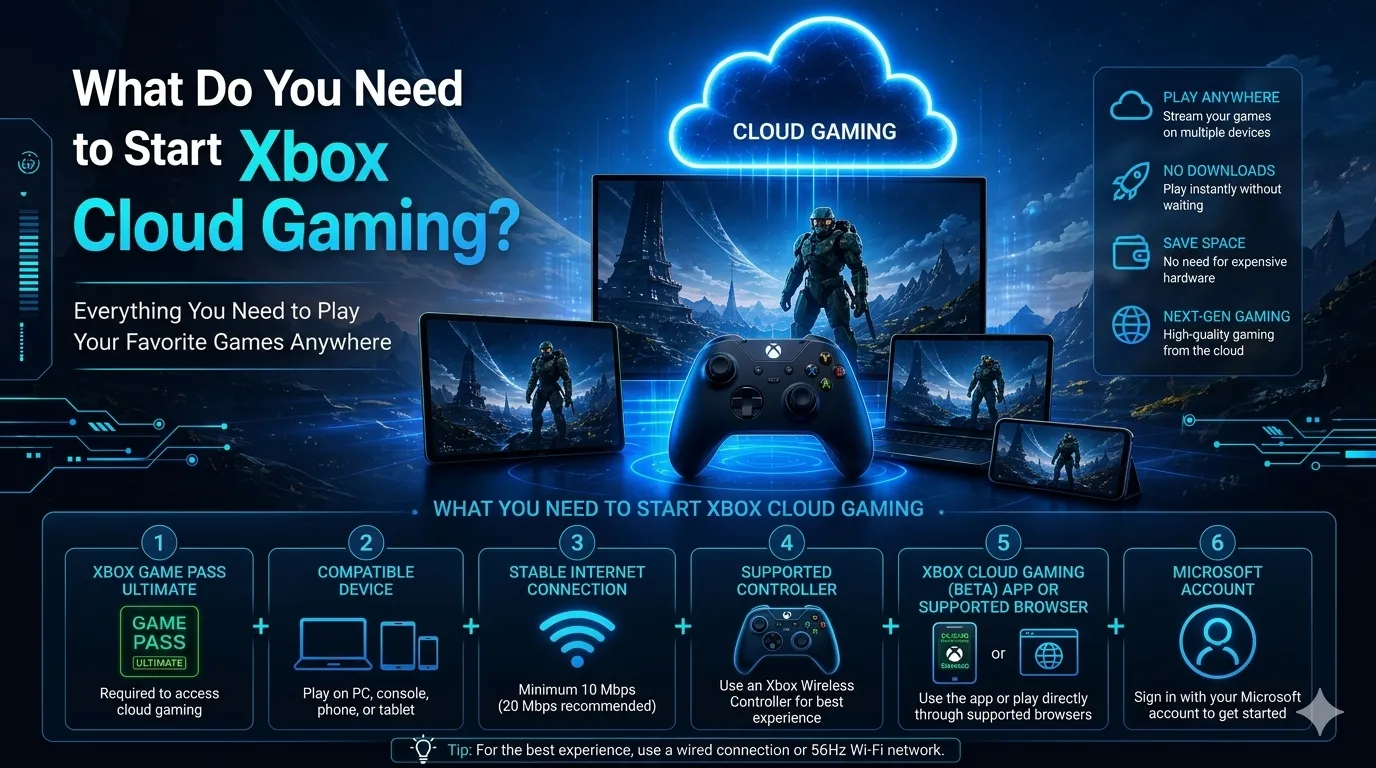
An Xbox Game Pass Ultimate Subscription
Xbox Cloud Gaming is not a standalone product. It's included exclusively with Xbox Game Pass Ultimate, Microsoft's premium subscription tier. This subscription bundles together:
Access to the full Xbox Game Pass library (300+ games on console and PC)
Xbox Cloud Gaming for streaming those games to any supported device
Xbox Live Gold for online multiplayer
EA Play membership for additional EA titles
As of 2026, Xbox Game Pass Ultimate is priced at approximately $19.99 per month in the United States. Microsoft frequently offers discounted first-month trials, which makes it easy to test the service before committing to a full subscription.
It's worth noting that Microsoft also offers Game Pass Standard at a lower price, but that tier does not include cloud gaming access. If streaming is your primary goal, Ultimate is the only plan that qualifies.
A Controller (Strongly Recommended)
Most cloud games are designed around controller input, and Microsoft's service reflects that. A Bluetooth or USB Xbox Wireless Controller provides the smoothest experience across all devices.
Third-party controllers that connect via Bluetooth or USB also work well on Android, PC, and browser-based sessions. On mobile, many players use a phone clip mount that attaches their controller directly to their smartphone, creating a portable gaming setup that rivals a dedicated handheld console.
Keyboard and mouse input are supported for cloud gaming on PC, and the experience has improved noticeably since 2023. However, games designed around controllers may feel awkward with mouse input, so always check the game's listed input support before diving in.
Xbox Game Pass Ultimate Cloud Gaming: What's in the Library?
How Many Games Can You Stream?
The cloud gaming library within Game Pass Ultimate currently includes over 300 titles, and Microsoft has made a firm commitment to adding every new Xbox Game Studios release to the cloud library on day one.
That means when a major first-party Xbox title launches, you can stream it immediately, no console purchase required, no disc to buy, no download to wait for. You just open the app and play.
Notable titles available for cloud streaming include:
Halo Infinite
Forza Horizon 5
Starfield
Microsoft Flight Simulator 2024
Sea of Thieves
Diablo IV
EA Sports FC (via EA Play)
Minecraft Legends
Grounded
Third-party publishers, including EA, Bethesda, Ubisoft, and 2K Games, have also made significant portions of their catalogs available for cloud play.
Not Every Game Supports Cloud Streaming
One important detail to understand: not every game in the Game Pass library is available for cloud streaming. Microsoft clearly labels which games support cloud play in the app. Look for the cloud icon next to the title. If that icon is absent, the game must be downloaded and played locally on a console or PC.
This distinction matters when you're planning your gaming sessions, especially if cloud access is your only method of play.
Xbox Cloud Gaming on PC: Everything You Need to Know
Two Ways to Play on Windows
PC gamers have two good options for accessing Xbox Cloud Gaming. The first is the Xbox app, downloadable from the Microsoft Store. It provides a dedicated interface, controller management tools, and slightly better performance than the browser method.
The second option is the browser method, visiting xbox.com/play in Microsoft Edge or Google Chrome and playing directly in the browser window. No installation required. This works well for users who don't want to install additional software or who are on a managed work or school computer.
From hands-on testing, both methods perform comparably on a stable connection. The Xbox app edges ahead slightly in menu responsiveness and controller detection speed, but both deliver an equally good in-game experience.
The Hidden Benefit for Low-End PCs
Here's an angle that doesn't get discussed enough: Xbox Cloud Gaming effectively transforms an underpowered laptop into a capable gaming machine.
A five-year-old budget laptop that can barely run a browser-based game smoothly can stream Forza Horizon 5 or Halo Infinite through Xbox Cloud Gaming because the processing happens entirely on Microsoft's servers. Your laptop is simply displaying compressed video and sending input signals.
This makes cloud gaming an excellent option for students, people on tight budgets, and anyone who uses a work laptop as their primary computer but wants access to a gaming library without upgrading hardware.
Best Internet for Xbox Cloud Gaming: Speed, Latency, and Stability
What Speed Do You Actually Need?
Microsoft publishes clear minimum speed requirements for Xbox Cloud Gaming:
Experience Level | Required Download Speed |
|---|---|
Minimum (720p streaming) | 7–10 Mbps |
Good (1080p streaming) | 20 Mbps |
Best (high quality, 4K where available) | 40+ Mbps |
The good news is that most modern home broadband connections comfortably exceed these thresholds. Even a basic cable or fiber internet plan typically delivers 50–100 Mbps, which puts you well into the "good" or "best" category.
Why Latency Beats Speed Every Time
Here's the truth that most beginner guides skip over: download speed matters far less than latency for cloud gaming.
Latency measured in milliseconds (ms) is the time it takes your input to travel to the server and the server's response to return to your screen. High latency makes games feel delayed and unresponsive, regardless of how fast your internet is. A connection with 200 Mbps but 150ms latency will feel worse than a 20 Mbps connection with 30ms latency.
For Xbox Cloud Gaming, aim for:
Under 80ms ping: acceptable for casual, turn-based, and story-driven games
Under 40ms ping: recommended for action games, platformers, and sports titles
Under 20ms ping: ideal for competitive shooters or fighting games
You can test your current latency at fast.com or speedtest.net before subscribing.
Wired vs. Wi-Fi: Does It Matter?
Yes, significantly. A wired Ethernet connection provides more stable, consistent performance than Wi-Fi for cloud gaming. Wi-Fi introduces signal interference, packet loss, and variable latency that can cause stuttering, dropped frames, or brief disconnections.
If you must use Wi-Fi, follow these practices:
Use the 5GHz band rather than 2.4GHz (faster, less interference)
Stay within close range of your router
Minimize the number of other devices actively streaming or downloading simultaneously
Consider a Wi-Fi 6 router if you haven't upgraded in several years
Can You Use Mobile Data?
Xbox Cloud Gaming works on 4G LTE and 5G mobile networks. Microsoft specifically optimized the service for mobile connectivity, and on a strong 5G signal, the experience is genuinely comparable to home broadband.
This portability is one of the most practical advantages of cloud gaming. You can play a full console game on your phone during a commute, at a café, or while traveling without touching a console.
One important caveat: streaming at 1080p consumes approximately 4 to 7 GB of data per hour. If your mobile plan has a data cap, track your usage carefully during long sessions.
Honest Pros and Cons of Xbox Cloud Gaming
What Cloud Gaming Does Well
Eliminates hardware costs: A new Xbox Series X or gaming PC costs $500 to $1,500+. Xbox Cloud Gaming removes that barrier completely. All you need is a $20/month subscription and a device you already own.
Zero download time: There are no installs, no patches, no storage management. You click play, and the game runs typically within 10 to 15 seconds.
True cross-device flexibility: Start a game on your TV, continue on your phone, pick it up on your laptop, all within the same subscription. Your cloud saves sync automatically.
Access to day-one releases: Every new Xbox Game Studios title lands on cloud gaming on launch day. You never wait to access new releases.
Works on low-end hardware: Older laptops and budget Android phones can run games they could never handle locally.
Where Cloud Gaming Has Limitations
Latency affects fast games: Competitive shooters, fighting games, and rhythm games are the most sensitive to input delay. Players who take these genres seriously will notice a difference compared to local hardware.
Visual compression is visible: Video compression produces occasional artifacts in fast-moving or high-contrast scenes. It's rarely game-breaking but noticeable if you're comparing to local 4K output.
Internet dependency is absolute: A dropped connection immediately ends your session. There is no offline mode for cloud gaming. Unreliable internet makes the experience frustrating.
The library has gaps: Over 300 cloud-enabled titles are impressive, but it doesn't cover every Game Pass game. Some titles require local installation.
For the majority of casual and mid-core gamers, the advantages significantly outweigh these limitations. Competitive or enthusiast gamers who demand the highest fidelity will still prefer local hardware, but for everyone else, cloud gaming is a compelling and practical option.
How to Set Up Xbox Cloud Gaming Step by Step
Getting started is faster than most people expect. Here's the complete setup process:
Create or sign in to your Microsoft account at account.microsoft.com.
Subscribe to Xbox Game Pass Ultimate at xbox.com/xbox-game-pass. Look for trial offers to reduce the first-month cost.
On Android, download the Xbox Game Pass app from the Google Play Store.
On iPhone or iPad, open Safari and navigate to xbox.com/play. Bookmark it for easy access.
On PC, download the Xbox app from the Microsoft Store, or go directly to xbox.com/play in Edge or Chrome.
On a Samsung Smart TV, open the Xbox app from your TV's app store and sign in.
Connect your controller via Bluetooth or USB, depending on your device.
Browse the library, filter by cloud-enabled games (look for the cloud icon), and click Play.
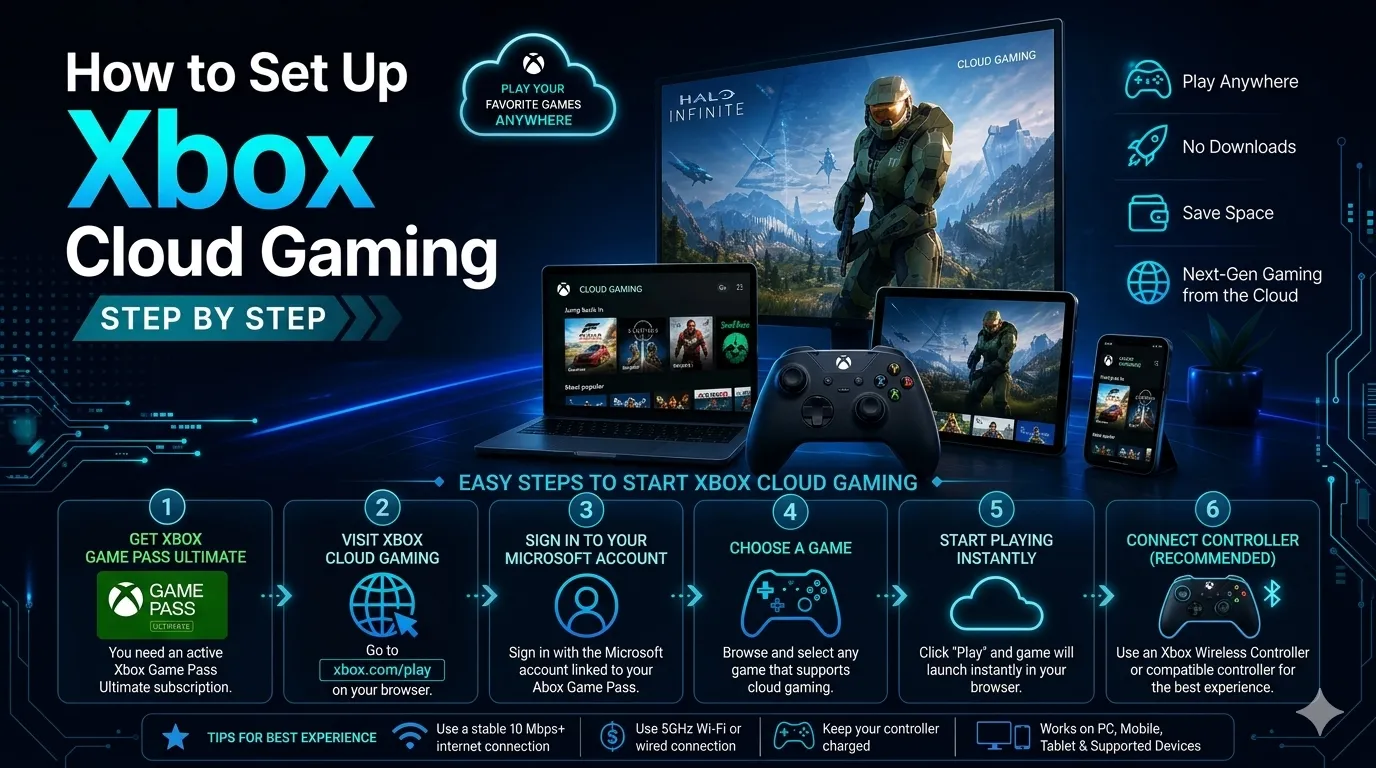
The entire process from account creation to playing your first cloud game takes under ten minutes for most users.
Conclusion
Xbox Cloud Gaming has matured into a genuinely practical and impressive service. It removes the hardware barrier that kept millions of people out of modern gaming, delivers a library of hundreds of titles across nearly every screen you own, and sets up in minutes with no technical expertise required.
If you're a casual or mid-core gamer looking for flexible, affordable access to a large game library, especially if you don't own or don't want to buy a console, Xbox Game Pass Ultimate with cloud gaming is one of the best value propositions in gaming today.
If you're a competitive player who needs every millisecond of input response, local hardware still wins. But for the vast majority of people reading this guide, cloud gaming is not just "good enough," it's genuinely great.
Frequently Asked Questions
Q: Do I need an Xbox console to use Xbox Cloud Gaming?
No. Xbox Cloud Gaming works entirely through your internet connection. You need a compatible device and a Game Pass Ultimate subscription, no console required at any point.
Q: Is Xbox Cloud Gaming included in the regular Game Pass?
No. Cloud gaming is exclusive to Xbox Game Pass Ultimate. Lower-tier plans like Game Pass Standard include game downloads but not cloud streaming. Upgrade to Ultimate if cloud access is your goal.
Q: Can I play Xbox Cloud Gaming on my iPhone?
Yes. On iPhone and iPad, open Safari and go to xbox.com/play. The browser-based version works well and supports controllers connected via Bluetooth. Apple's policies currently prevent a dedicated streaming app on the App Store, so the browser remains the primary access method on iOS.
Q: How much data does Xbox Cloud Gaming use per hour?
Streaming at 1080p typically uses between 4 and 7 GB per hour. At 720p, usage drops to roughly 2–3 GB per hour. Factor this into your planning if you're gaming on a mobile data plan with a monthly cap.
Q: What's the difference between downloading a Game Pass game and streaming it in the cloud?
When you download a Game Pass game, it installs on your local device and runs using your hardware. When you stream it via cloud gaming, the game runs on Microsoft's servers and streams to your screen. Downloads require storage space and compatible hardware. Cloud streaming requires only the internet and a subscription.
Q: Is Xbox Cloud Gaming available worldwide?
As of 2026, Xbox Cloud Gaming is available in 40+ countries. Coverage continues to expand. Visit xbox.com/en-US/xbox-game-pass/cloud-gaming for the current list of supported regions.
Q: Can I use Xbox Cloud Gaming on a school or work computer?
Yes, if the browser method is available to you. Visiting xbox.com/play in Chrome or Edge requires no software installation, which means it often works on managed computers where you can't install apps. Check your institution's network policies, as some block gaming traffic.
Share this article
Related Articles
Gamification in 2026: The Complete Guide to Engagement, Motivation & Growth
Discover how gamification in 2026 boosts engagement, motivation, and business growth through rewards, AI-driven experiences, leaderboards, and interactive digital strategies.
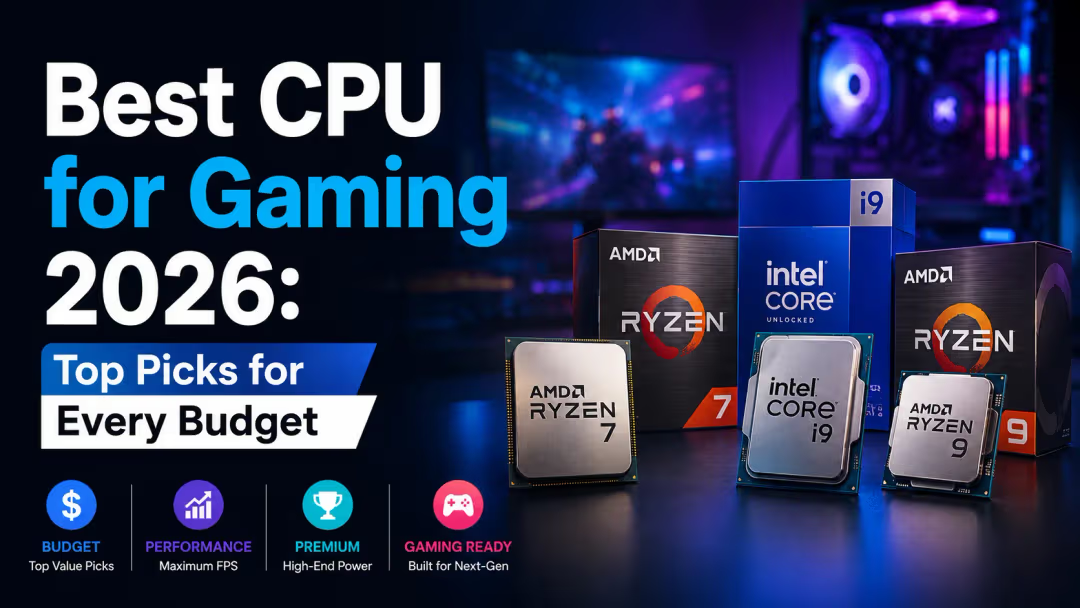
Best CPU for Gaming 2026: Top Picks for Every Budget
Find the best gaming CPUs for 2026 with top AMD and Intel picks for every budget. Compare performance, FPS, value, and future-proof gaming power.
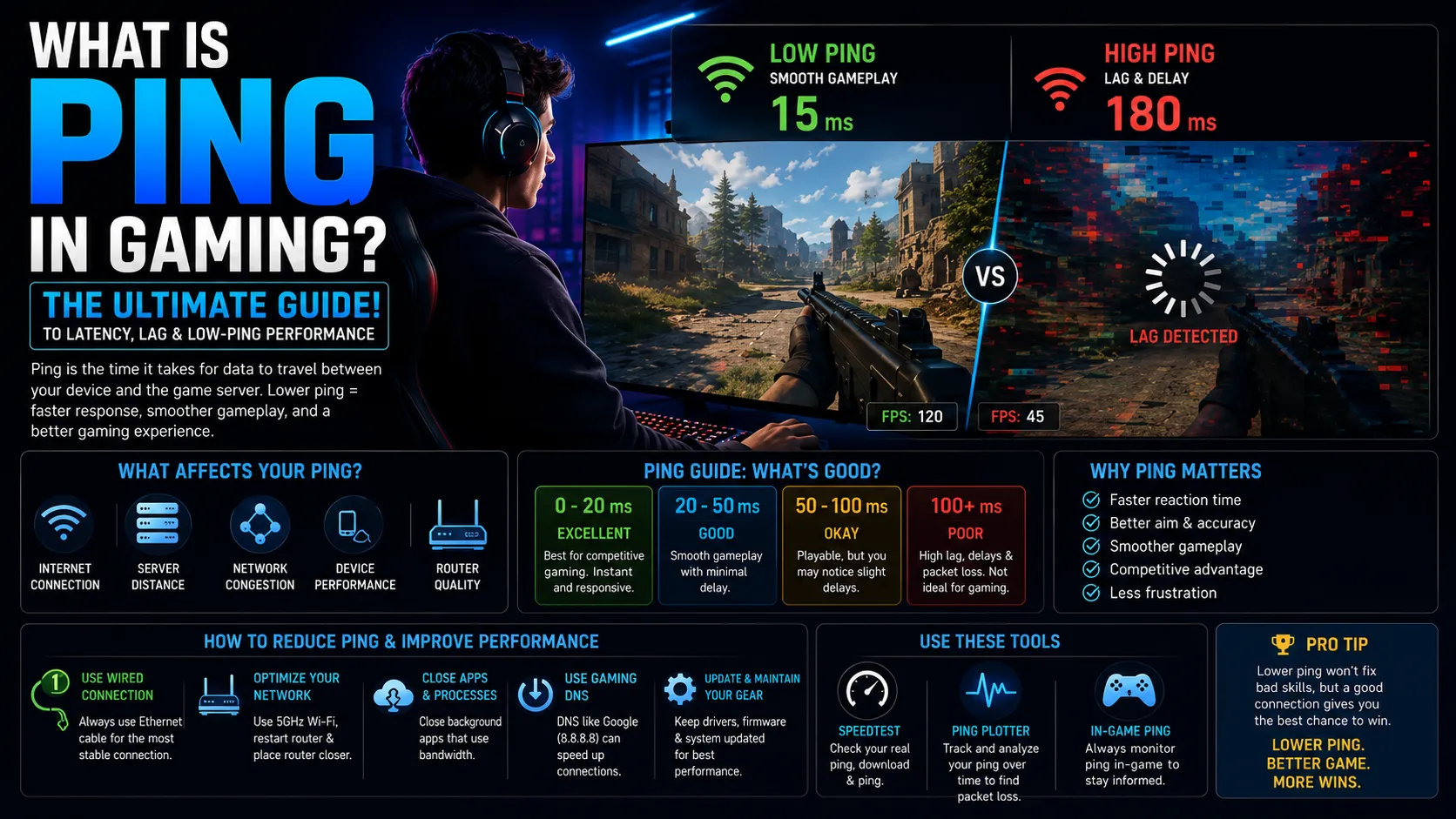
What Is Ping in Gaming? The Ultimate Guide to Latency, Lag & Low-Ping Performance
Low ping can mean the difference between victory and defeat. Learn what ping really is, how latency affects online gaming, and the best ways to reduce lag for smoother, faster gameplay in 2026.