
How to Choose a Gaming Monitor: The Ultimate Guide for Gamers in 2026
Choose the best gaming monitor in 2026 with this guide. Learn about refresh rate, resolution, response time, and panels for smooth and immersive gameplay.
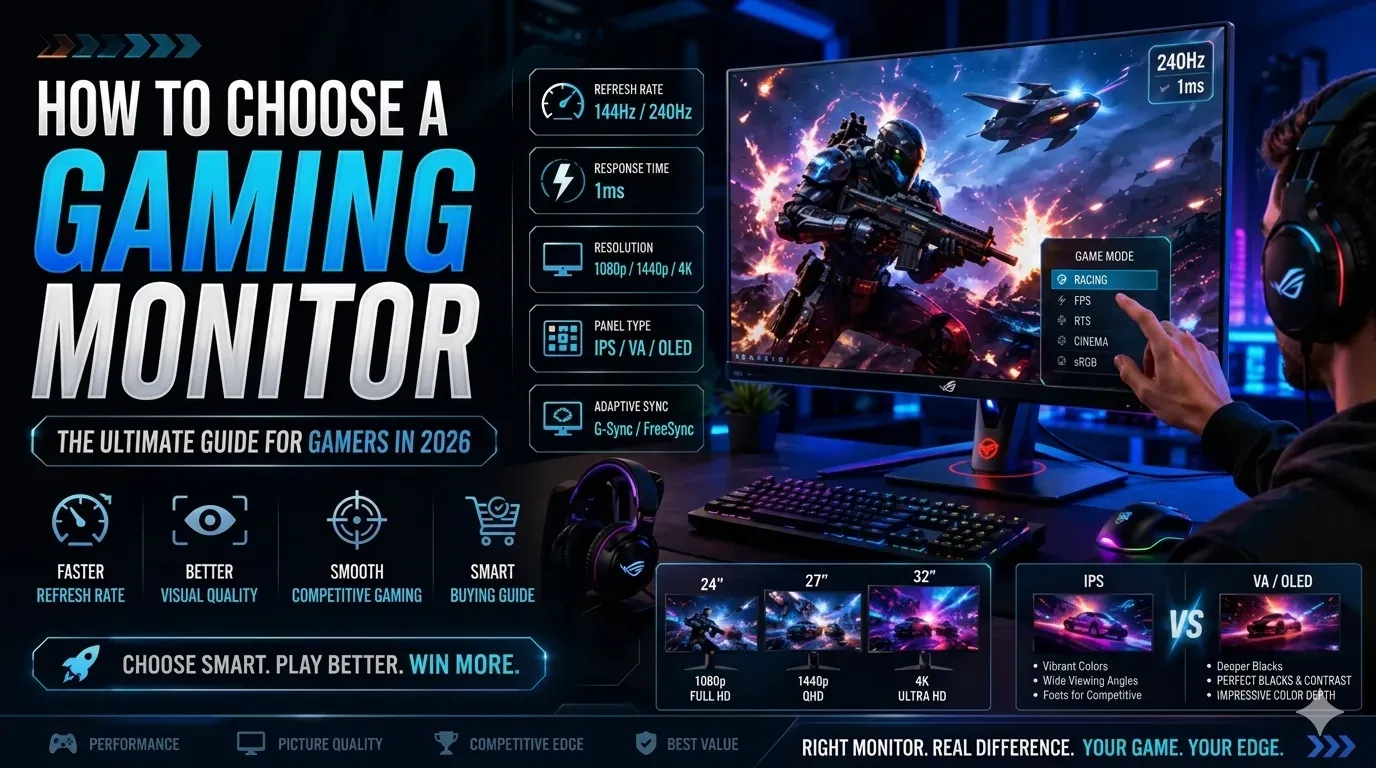
You just spent months building the perfect gaming PC, a powerful GPU, a fast processor, and plenty of RAM. Then you plug it into a mediocre monitor and wonder why everything looks flat and choppy. The display is the one component every single frame passes through, and most gamers underestimate it completely. This guide shows you exactly how to choose a gaming monitor in 2026, covering every spec that matters, every trap to avoid, and every decision you need to make before you spend a single dollar.
Why Choosing the Right Gaming Monitor Changes Everything
Think of your monitor as the window into your game world. The GPU renders the image. The monitor delivers it. If that window is blurry, slow, or poorly calibrated, no amount of hardware underneath it saves you.
A 60Hz monitor caps your perceived smoothness at 60 frames per second, even if your RTX 4080 is pushing 300. A panel with poor color accuracy makes a visually stunning game look washed out. A monitor that's too large for your resolution leaves you staring at individual pixels.
The right monitor doesn't just display your game, it transforms how it feels to play. Smoother motion, sharper images, accurate colors, and zero screen tearing all come from buying smart. The wrong monitor, on the other hand, creates a ceiling on every gaming experience you'll have for the next three to five years.
Here's how to get it right the first time.
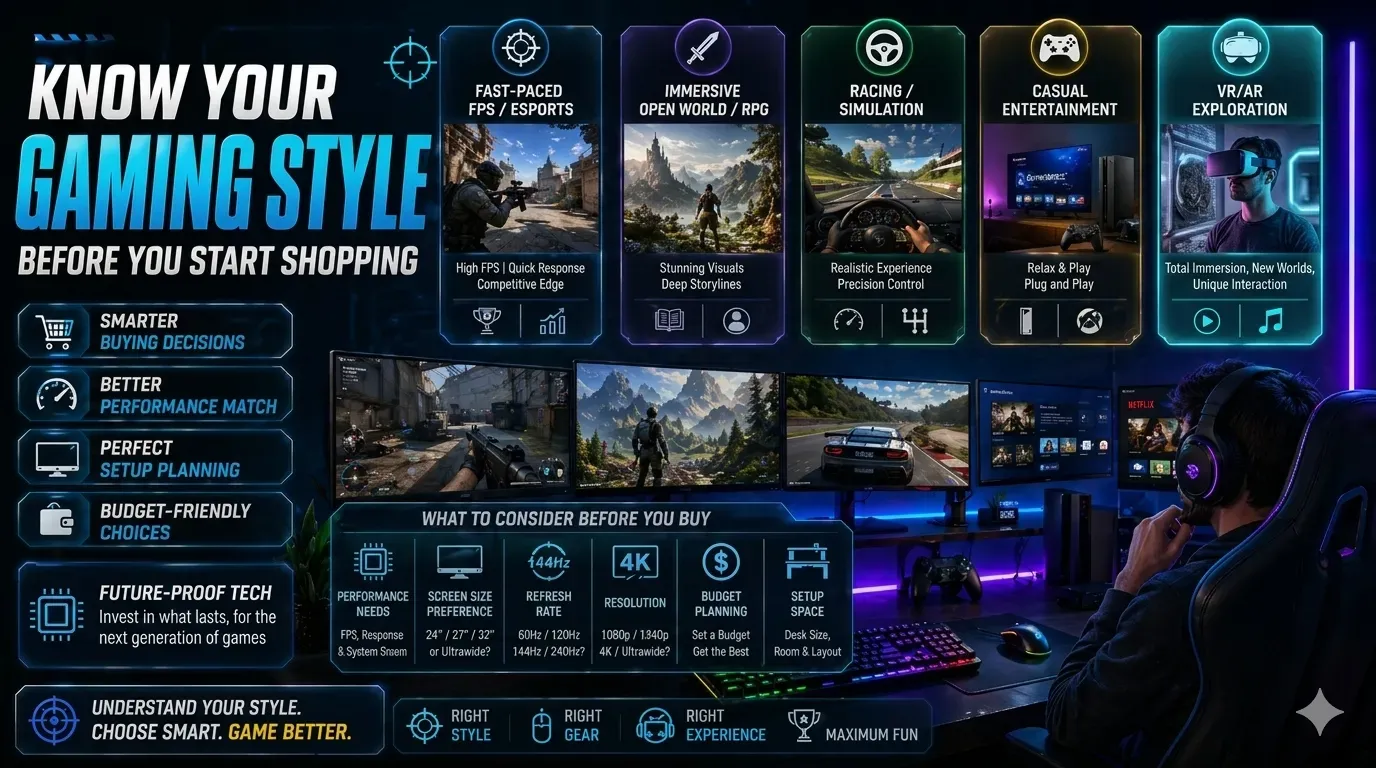
Know Your Gaming Style Before You Start Shopping
The single biggest mistake in any gaming monitor buying guide is skipping this step. There is no universally best gaming monitor; there's only the best monitor for your games and your hardware.
Competitive Gamers: Speed Is Everything
If you live in Valorant, CS2, Apex Legends, or any fast-paced shooter, you need raw speed above all else. That means the highest refresh rate your hardware can sustain, the lowest response time available, and a resolution your GPU can push at high Frame Per Second (FPS). Image quality takes a back seat to responsiveness.
Immersive and Single-Player Gamers: Quality Over Speed
If you spend most of your time in games like Elden Ring, Cyberpunk 2077, Red Dead Redemption 2, or any narrative-driven experience, image quality becomes the priority. You want rich colors, deep contrast, accurate HDR, and a large enough screen to feel pulled into the world.
Console Gamers: HDMI 2.1 Is Non-Negotiable
PlayStation 5 and Xbox Series X output 4K at up to 120Hz but only over HDMI 2.1. Many monitors still ship with HDMI 2.0, which caps you at 4K/60Hz or 1080p/120Hz. Check the port specs before buying.
Content Creators and Streamers Who Game
If you edit video, design thumbnails, or stream your gameplay, color accuracy becomes critical alongside gaming performance. Look for monitors with wide color gamut coverage (DCI-P3 or sRGB) alongside fast panel technology.
Identifying your primary use case takes five minutes and immediately eliminates half the monitors on the market. Now let's go spec by spec.
Refresh Rate: The Spec That Defines How Smooth Your Game Feels
Refresh rate is the number of times your monitor redraws the image every second, measured in hertz (Hz). This is the single most impactful spec for competitive gamers and one of the most important for everyone else.
Breaking Down Refresh Rate Options in 2026
60Hz: The baseline. Functional for casual gaming, turn-based games, and strategy titles where fast motion isn't a factor. If you're gaming on a tight budget or primarily play slow-paced games, 60Hz is acceptable, but it's increasingly hard to find dedicated gaming monitors because the market has moved on.
144Hz: This is where gaming monitors truly begin. The jump from 60Hz to 144Hz is dramatic; most people notice it instantly. Games feel smoother, mouse movement feels more connected to what happens on screen, and fast action becomes significantly easier to track. For the majority of PC gamers, 144Hz is the sweet spot that balances cost and performance perfectly.
165Hz–180Hz: Many 1440p IPS monitors ship at 165Hz as their rated maximum. The improvement over 144Hz is subtle but real, and you typically get it at no extra cost since it's built into the panel.
240Hz: A genuine upgrade for competitive play. The difference from 144Hz isn't as shocking as the jump from 60Hz, but it's perceptible in fast games. Professional esports players and serious ranked competitors notice reduced motion blur and improved target tracking at 240Hz. Most mid-to-high-end GPUs can sustain 240+ FPS in esports titles.
360Hz and 500Hz: The cutting edge of competitive gaming displays. These panels exist specifically for professional players in titles like CS2, Valorant, and Overwatch 2, where every millisecond of visual clarity counts. For the vast majority of gamers, this is overkill, but if you're grinding ranked at the highest level, the advantage is measurable.
The rule of thumb: Buy the highest refresh rate your GPU can consistently feed. A 240Hz monitor running at 80 FPS delivers no benefit over a 144Hz panel at the same frame rate.
Refresh rate controls smoothness, but the next spec controls sharpness.
Resolution Balancing Visual Clarity With GPU Demand
Resolution is the number of pixels your monitor displays. More pixels mean a sharper image and a heavier load on your graphics card. Choosing the wrong resolution for your hardware creates either a bottleneck or wasted potential.
1080p (Full HD: 1920×1080)
Still the most widely used gaming resolution in 2026, particularly in esports. It's easy to drive at high frame rates, GPU-friendly, and perfectly sharp on smaller screens (24 inches and under). If your GPU is a mid-range card and you prioritize high refresh rates in competitive games, 1080p remains a completely valid choice.
1440p (QHD: 2560×1440)
This is the current sweet spot for gaming monitors, and for good reason. The jump in visual quality from 1080p to 1440p is immediately obvious; textures look sharper, foliage is more detailed, and UI elements are cleaner. Cards like the RTX 4070 or RX 7800 XT handle 1440p at high frame rates without breaking a sweat. On a 27-inch screen, 1440p hits the ideal pixel density where the image looks genuinely crisp from a normal viewing distance.
4K (UHD: 3840×2160)
The pinnacle of visual quality for gaming monitors. At 32 inches or above, 4K looks spectacular; every texture, every shadow, every distant detail is rendered with precision. The trade-off is GPU demand. Sustained 4K at high frame rates still requires flagship hardware: an RTX 4080, RTX 4090, or RX 7900 XTX. For most gamers running mid-range hardware, 4K creates a bottleneck that undermines the investment.
The practical guide: Match resolution to screen size and GPU capability. 1080p on 24 inches. 1440p on 27 inches. 4K on 32 inches or larger, and only if your GPU can handle it.
IPS vs VA vs TN: The Gaming Monitor Panel Type Breakdown
Panel technology determines color quality, viewing angles, contrast ratio, and response time. This is one of the most discussed topics in any gaming monitor buying guide, and the answer has shifted significantly in recent years.
TN (Twisted Nematic) Panels
TN panels were the default for gaming monitors throughout the 2010s because they offered the fastest pixel response times, sometimes as low as 0.5ms. The trade-offs were always significant: poor color reproduction, washed-out images, and narrow viewing angles that shift color dramatically if you look from even a slight angle.
In 2026, TN panels have largely fallen out of favor. IPS technology has matched or surpassed TN response times while delivering far superior image quality. TN panels still appear in budget monitors and a handful of ultra-high-refresh eSports displays, but they're no longer the competitive default.
Best for: Gamers on very tight budgets or those who specifically need sub-1ms response at entry-level pricing.
VA (Vertical Alignment) Panels
VA panels offer the highest contrast ratios of any LCD technology, typically 3,000:1 or higher, compared to IPS at around 1,000:1. This means darker blacks, richer shadows, and a more cinematic image in dark environments. Horror games, space simulators, and narrative RPGs look exceptional on a well-calibrated VA panel.
The drawbacks are real, however. VA panels suffer from "smearing," a visual artifact where dark pixels transition slowly, leaving a trailing shadow behind fast-moving objects. This is called ghosting, and it's noticeable in fast games. Some VA panels also exhibit "black crush," where very dark shadow areas lose detail.
Best for: Single-player gamers who prioritize immersion and dark scene quality over pixel-perfect motion clarity.
IPS (In-Plane Switching) Panels
IPS panels dominate the premium gaming monitor market in 2026, and the reason is simple: manufacturers solved the response time problem. Modern Fast IPS and Nano IPS panels deliver 1ms grey-to-grey response times while maintaining the color accuracy and wide viewing angles IPS has always been known for.
You get vibrant, accurate colors. You get wide 178-degree viewing angles. You get fast response times that match or beat older TN panels. The only area where IPS still lags is contrast ratio, 1,000:1 is typical, which means blacks look more grey than true black in dark environments.
Best for: The majority of gamers, an excellent all-around choice for competitive play, immersive single-player gaming, and content creation alike.
OLED: The New Premium Option
OLED panels are increasingly appearing in gaming monitors, and they represent a significant leap in certain areas. OLED delivers perfect black levels (each pixel turns off individually), near-instant response times below 0.1ms, and stunning contrast that makes HDR content look genuinely impressive.
The concerns with OLED are burn-in risk from static HUD elements, slightly lower peak brightness than the best IPS panels, and higher price points. OLED gaming monitors are excellent for enthusiasts who understand the trade-offs, but they're not a straightforward recommendation for every gamer.
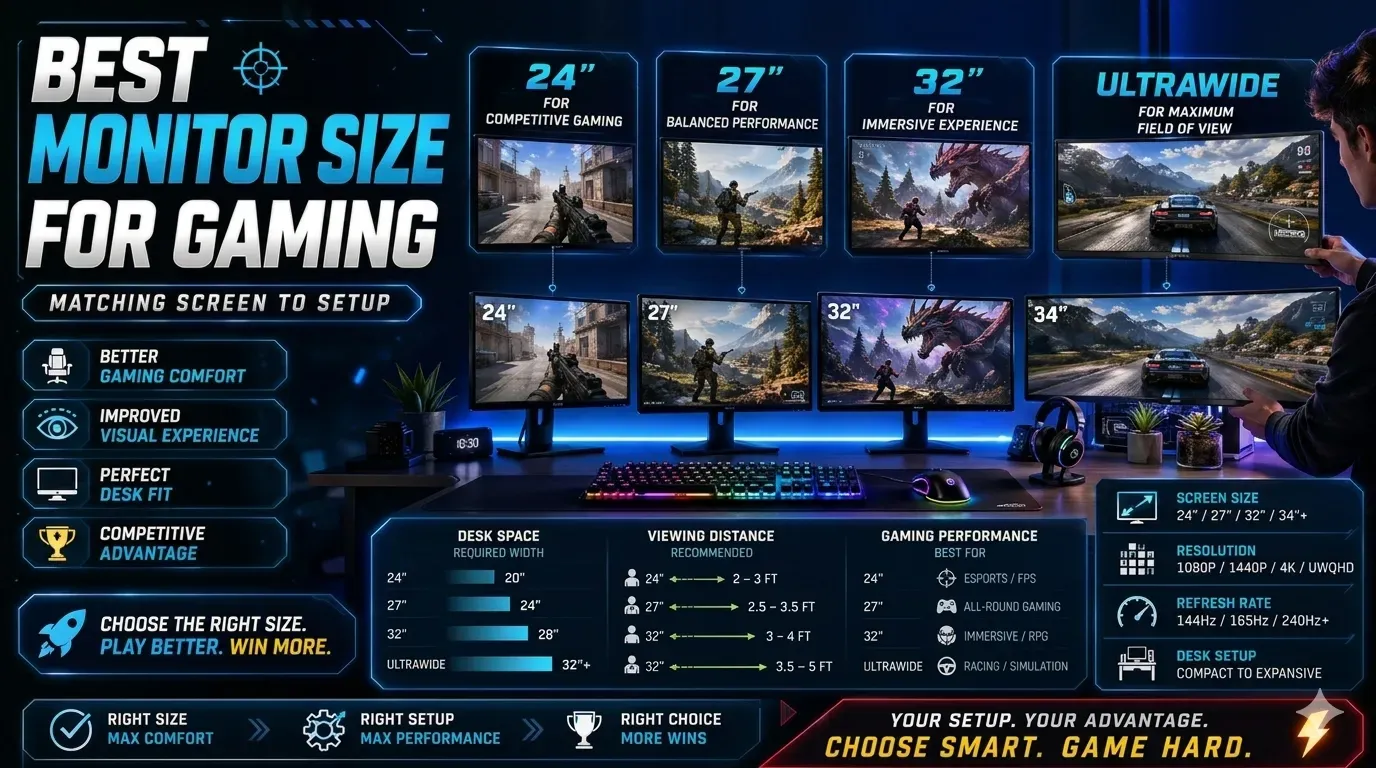
Best Monitor Size for Gaming: Matching Screen to Setup
The Most Common Gaming Monitor Sizes Explained
24 inches: The professional esports standard. At 1080p, 24 inches delivers sharp pixel density, and the smaller physical footprint keeps everything within your natural field of view without requiring head movement. Most professional esports players competing at the highest level still use 24-inch monitors. If you play competitive shooters seriously, this is worth considering.
27 inches: The most popular gaming monitor size for everyday gamers, and for good reason. Paired with 1440p resolution, 27 inches delivers excellent pixel density without forcing you to sit unusually far back. It's large enough to feel genuinely immersive for single-player games while remaining practical for a typical desk setup. This is the size most gamers should start with.
32 inches: Excellent for 4K gaming or as a secondary monitor in a multi-display setup. At this size, 1440p pixel density becomes slightly soft when viewed up close. 4K is the ideal resolution pairing. Great for simulation games, strategy titles, and cinematic single-player experiences. Consider your desk depth before buying.
Ultrawide (34 to 38 inches): Ultrawide monitors with 21:9 or even 32:9 aspect ratios offer a panoramic field of view that completely replaces the need for a dual-monitor setup. Games that support ultrawide look spectacular. The caveats: not every game supports the aspect ratio natively (some letterbox), competitive shooters sometimes restrict them, and they demand more GPU power to push those extra pixels.
General sizing rule: Pixel density matters. A 32-inch 1080p monitor looks visibly soft at close range. A 24-inch 4K monitor is unnecessarily sharp for gaming. Match the resolution to the size.
Adaptive Sync: Eliminating Screen Tearing for Good
Screen tearing happens when your GPU and monitor fall out of sync; you see two different frames displayed simultaneously as a jagged horizontal line cutting across the screen. It's distracting, and in fast games, it's constant without adaptive sync.
G-Sync (NVIDIA): A proprietary module built into certified monitors that synchronizes the display's refresh rate to the GPU's output frame by frame. It works flawlessly but adds cost to the monitor, typically $100–$200 more than a comparable FreeSync panel.
FreeSync (AMD): An open standard that achieves the same result without licensing fees. FreeSync Premium and FreeSync Premium Pro add low-framerate compensation and HDR requirements, respectively. FreeSync monitors are more common and typically more affordable.
G-Sync Compatible: NVIDIA certifies FreeSync monitors that meet their performance standards. These work with NVIDIA GPUs for tear-free gaming without the module cost. This is the most practical and cost-effective path for most buyers, especially since the vast majority of modern gaming monitors carry this certification.
Bottom line: Always choose a monitor with adaptive sync. Whether that's G-Sync, FreeSync, or G-Sync Compatible depends on your GPU (Graphics Processing Unit) brand and budget. The experience difference between tearing and tear-free gameplay is impossible to overstate.
HDR on Gaming Monitors: Separating Real Performance From Marketing
HDR promises brighter highlights, deeper shadows, and more vivid colors. In practice, HDR quality on gaming monitors varies wildly, and a lot of what's marketed as HDR is barely functional.
DisplayHDR 400: The entry-level certification. Most gaming monitors in this tier show minimal real-world improvement over a good SDR image. The peak brightness ceiling is too low to create meaningful highlight detail. Treat HDR 400 as a checkbox rather than a feature.
DisplayHDR 600: A noticeable step up. Highlights become genuinely brighter, and color volume expands in supported titles. Worth having if you play HDR-enabled games like Cyberpunk 2077 or Horizon Forbidden West.
DisplayHDR 1000 and above: This is where HDR becomes transformative. Combined with full-array local dimming, where individual zones of the backlight can dim or brighten independently, monitors at this tier create contrast that approaches OLED quality. These are premium, expensive panels, but HDR genuinely delivers at this level.
Practical advice: If HDR matters to you, don't buy anything below DisplayHDR 600. If the monitor you're considering is DisplayHDR 400, mentally remove HDR from the feature list and evaluate it purely on its other specs.
Budget Planning: The Best Gaming Monitor at Every Price Point
Gaming Monitor Buying Guide by Budget
Under $200: A 24-inch 1080p IPS monitor at 144Hz. Brands like AOC, ViewSonic, and MSI deliver solid competitive gaming performance here. Adaptive sync is now standard, even at this price. Don't expect great HDR or factory-calibrated color, but you'll get a genuinely capable gaming display.
$200–$350: The sweet spot for value. A 27-inch 1440p IPS panel at 144–165Hz with FreeSync Premium is achievable here from LG, ASUS, and Samsung. These monitors represent exceptional value, better color, better resolution, and adaptive sync without breaking the budget.
$350–$600: Premium 1440p at 240Hz, or entry-level 4K IPS displays. ASUS ROG, LG UltraGear, and Samsung Odyssey dominate this tier. You'll also find excellent ultrawide 1440p monitors in this range. Color accuracy improves significantly, and some panels include factory calibration reports.
$600–$1,000: High-refresh 4K, OLED gaming monitors, and premium ultrawide displays. The LG 27GR95QE-B (QHD OLED) and similar panels appear in this range. At this tier, you're getting near-perfect image quality with fast, competitive performance.
$1,000 and above: Flagship territory. 4K OLED, 32-inch QHD at 240Hz, MiniLED with full-array local dimming, and specialized professional gaming displays. If budget isn't a constraint, this is where monitors stop compromising on anything.
Match your monitor spend to your GPU spend. A $1,000 monitor on a $300 GPU is misaligned, and so is a $150 monitor on a $900 GPU. Allocate roughly 20–30% of your total PC budget to the display for the best balance.
Conclusion
Learning how to choose a gaming monitor isn't about memorizing specs; it's about matching the right specs to your gaming style, your hardware, and your budget. Here's the quick recap:
Know your gaming style first. Competitive players need speed; immersive gamers need quality. Choose a refresh rate your GPU can actually feed, 144Hz for most, 240Hz for competitive play. Pick your resolution based on your GPU and screen size. 1440p on 27 inches remains the best all-round choice in 2026. Go IPS unless you have a specific reason to choose VA or OLED. Add adaptive sync; it's non-negotiable. Evaluate HDR honestly, and don't pay a premium for DisplayHDR 400.
The monitor you choose today shapes every gaming session for the next four to five years. Take the time to get it right, check independent reviews on RTINGS or Digital Foundry before committing, and buy with full confidence.
Frequently Asked Questions
Q: What's more important for gaming, refresh rate or resolution?
A: It depends on your game type. For competitive shooters, refresh rate wins every time. For single-player and open-world games, resolution and panel quality matter more. If you can only prioritize one, match the choice to your most-played genre.
Q: Is 144Hz enough in 2026, or do I need 240Hz?
144Hz is still excellent for most gamers. If you're playing competitive shooters at a serious level and your hardware sustains 200+ FPS, 240Hz is worth the investment. For everything else, 144Hz is more than adequate.
Q: Can I use a gaming monitor for PS5 or Xbox Series X?
Yes, but verify the monitor has HDMI 2.1 ports. Without HDMI 2.1, you can't access 4K at 120Hz from current-gen consoles. Many monitors still ship with HDMI 2.0, which limits you.
Q: Is OLED worth it for gaming monitors in 2026?
OLED is outstanding for image quality and response time, but comes with burn-in risk from static game elements (health bars, minimaps, weapon icons). For dedicated gaming monitors used heavily, IPS remains the safer long-term investment unless you're willing to manage burn-in risk carefully.
Q: How do I know if a monitor will work with my GPU for adaptive sync?
NVIDIA GPU owners should look for G-Sync or G-Sync Compatible certification. AMD GPU owners should look for FreeSync Premium or higher. Most modern monitors list both, and NVIDIA cards work fine with G-Sync Compatible FreeSync panels.
Q: What's the ideal viewing distance for a 27-inch gaming monitor?
Roughly 80 to 100 cm (31 to 39 inches) from your eyes to the screen. This places the full display comfortably in your field of view without requiring excessive head movement or causing eye strain.
Q: Does a higher-priced monitor automatically mean better gaming performance?
Not automatically. A $400 IPS monitor at 1440p/165Hz often outperforms a $700 VA panel at 4K/60Hz for competitive gaming. Define your priorities first: panel type, refresh rate, resolution, then find the best value within your budget.
Share this article
Related Articles

Gamification in 2026: The Complete Guide to Engagement, Motivation & Growth
Discover how gamification in 2026 boosts engagement, motivation, and business growth through rewards, AI-driven experiences, leaderboards, and interactive digital strategies.
Best CPU for Gaming 2026: Top Picks for Every Budget
Find the best gaming CPUs for 2026 with top AMD and Intel picks for every budget. Compare performance, FPS, value, and future-proof gaming power.
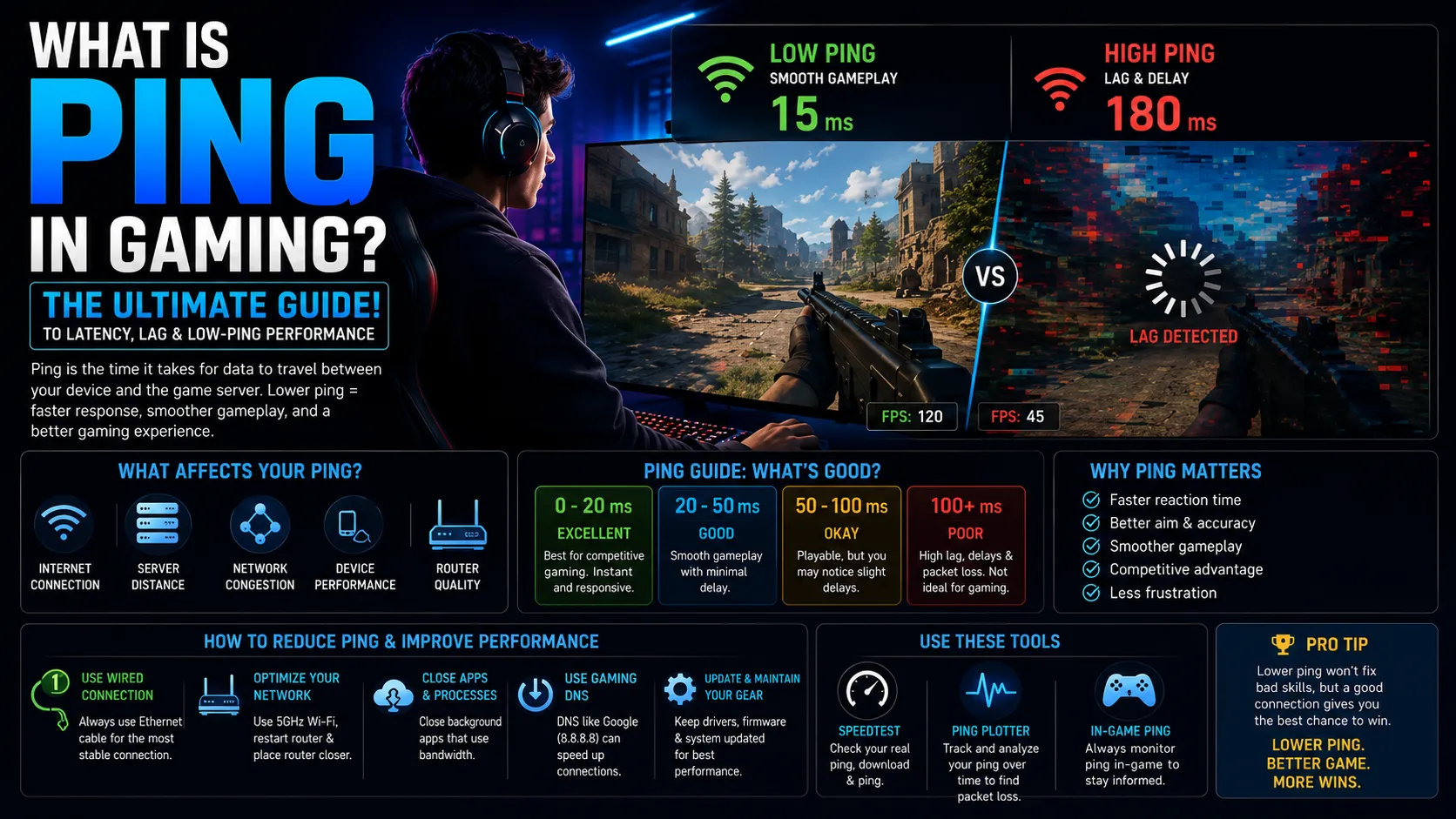
What Is Ping in Gaming? The Ultimate Guide to Latency, Lag & Low-Ping Performance
Low ping can mean the difference between victory and defeat. Learn what ping really is, how latency affects online gaming, and the best ways to reduce lag for smoother, faster gameplay in 2026.